
SmartView Filter Overview
The SmartView Filter helps you quickly sort, organize, and manage your ASIC devices in the IoT and ASIC pages. It allows you to filter devices based on key metrics such as hash rate, power consumption, efficiency, firmware, and model type — making it easier to find and command specific groups of miners.
Device Status & Activity:
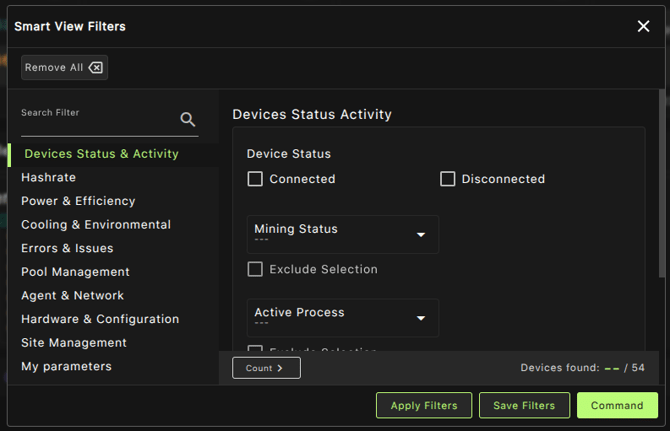
Device Status
- Connected – Show only connected devices.
- Disconnected – Show only disconnected devices.
Mining Status
- Low – Devices mining with a low hashrate.
- Mining – Devices that are actively mining (any hashrate).
- Normal – Devices mining at a normal/expected rate.
- Stopped – Devices that are stopped.
Active Process
- Pool Changing – Devices currently changing pool.
- Power Switching On – Devices in the process of powering on.
- Power Switching Off – Devices in the process of powering off.
- Ramping Stop – Devices being gradually stopped.
- Ramping Start – Devices being gradually started.
- Skipped Rail – Devices that skipped a rail action.
- Power Adjusting – Devices adjusting their power consumption.
Tags
- Filter devices by assigned tags.
Exclude Selection
- Exclude selected items from the current filter result (applies to Device Status, Active Process, and Tags).
Hashrate:
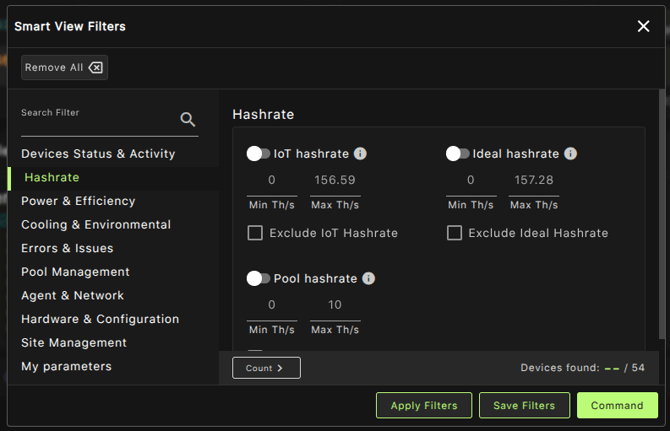
IoT Hashrate
- Show devices whose IoT hashrate is between min and max.
- Option to exclude IoT hashrate.
Ideal Hashrate
- Show devices whose ideal hashrate is between min and max.
- Option to exclude ideal hashrate.
Pool Hashrate
- Show devices whose pool hashrate is between min and max.
- Option to exclude pool hashrate.
Power & Efficiency
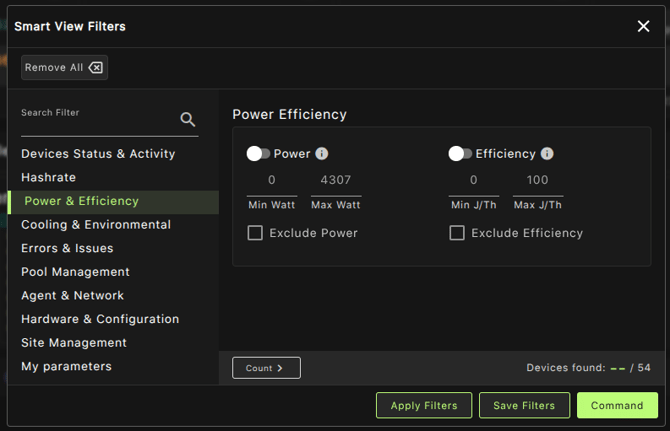
Power
- Show devices whose power consumption is between min and max.
- Option to exclude power.
Efficiency
- Show devices whose efficiency is between min and max.
- Option to exclude efficiency.
Cooling & Temperature:
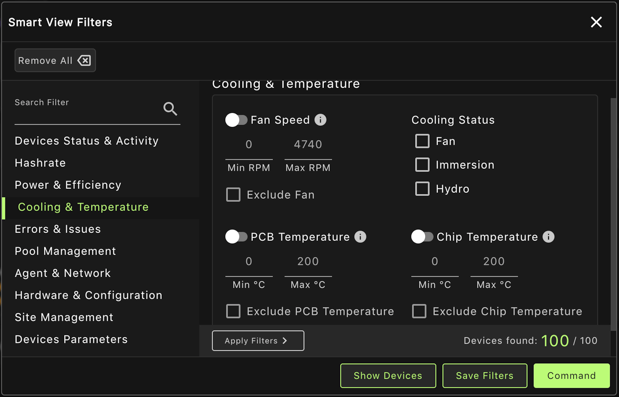
Fan Speed
-
Show devices whose fan RPM is between the selected minimum and maximum values.
-
Option to exclude fan speed from the filter (useful for immersion or hydro setups).
Cooling Status
-
Filter devices based on their cooling configuration.
-
Options include Fan, Immersion, or Hydro cooling.
PCB Temperature
-
Show devices whose PCB temperature is between the selected minimum and maximum values.
-
Option to exclude PCB temperature from the filter.
Chip Temperature
-
Show devices whose chip temperature is between the selected minimum and maximum values.
-
Option to exclude chip temperature from the filter.
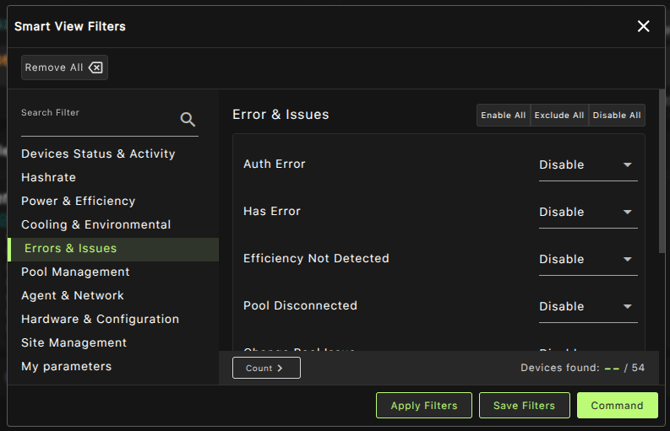
Auth Error
- Enable → Show only devices that currently have authentication errors.
- Disable → Show only devices that do not have authentication errors.
- Exclude → Ignore this filter completely (do not filter devices based on auth error).
Hash Error
- Enable → Show only devices that have hash errors.
- Disable → Show only devices that do not have hash errors.
- Exclude → Do not apply this filter.
Efficiency Not Detected
- Enable → Show only devices where efficiency could not be detected.
- Disable → Show only devices where efficiency is detected.
- Exclude → Ignore this filter.
Pool Disconnected
- Enable → Show only devices that are disconnected from the pool.
- Disable → Show only devices that are connected to the pool.
- Exclude → Do not filter based on pool connection.
Change Pool Issue
- Enable → Show only devices that have issues when switching pools.
- Disable → Show only devices that don’t have pool switching issues.
- Exclude → Ignore this filter.
Empty Pool
- Enable → Show only devices with no pool configured.
- Disable → Show only devices with at least one pool configured.
- Exclude → Do not apply this filter.
Hashrate Issues
- Enable → Show only devices with hashrate-related problems (e.g., below threshold).
- Disable → Show only devices without hashrate problems.
- Exclude → Ignore this filter.
Power Adjustment
- Enable → Show only devices where automatic power adjustments are active.
- Disable → Show only devices with no power adjustment applied.
- Exclude → Do not apply this filter.
Target Mismatch
- Enable → Show only devices with target mismatch errors.
- Disable → Show only devices without target mismatch errors.
- Exclude → Ignore this filter.
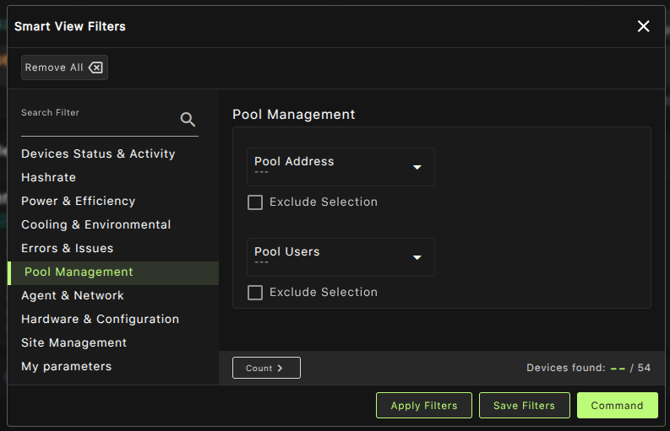
Pool Users
- Show devices by their pool users
→ Displays devices associated with selected pool usernames (often used to identify workers under an account in a pool). Helpful for tracking user-level performance. - Exclude selection
→ Hides devices linked to the selected pool users, so you can analyze only the rest of the devices.
Agent & Network:
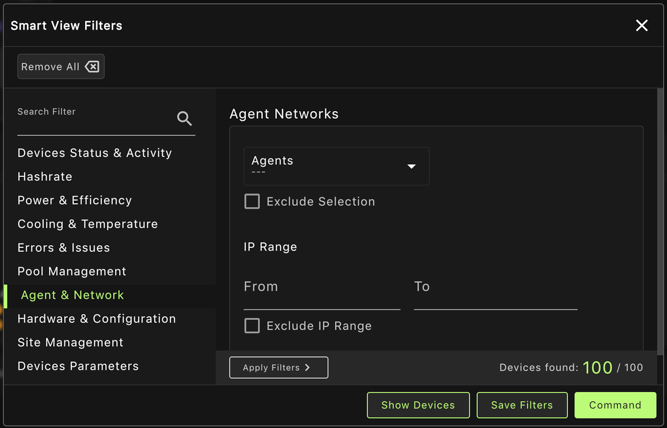
Agents
- Show devices connected to specific agents
→ Lets you filter devices based on the monitoring/management agents they are connected to. - Exclude selection
→ Hides devices connected to the selected agents, showing only the rest.
IP Range
- Show devices with IP in the specified range
→ Displays devices whose IP addresses fall within the given range (e.g., 192.168.1.1 – 192.168.1.255). - Exclude IP range
→ Hides devices in the specified IP range, showing only devices outside it.
Hardware & Configuration:

Mining Algorithms
- Show devices running specific mining algorithms
→ Lets you filter devices based on the algorithm they are currently mining (e.g., SHA-256, Scrypt, Ethash). - Exclude selection
→ Hides devices running the selected algorithms, showing only the rest.
Models
- Show devices of specific hardware models
→ Useful for narrowing down monitoring to certain miner types or manufacturers. - Exclude selection
→ Hides devices of the selected models, displaying all others.
Firmwares
- bosminer / cgminer / luxos / vnish
→ Lets you filter devices by the firmware they are running. Each option corresponds to a different mining firmware type. - Exclude selection
→ Hides devices running the selected firmware(s), showing only devices on other firmware.
Site Management:
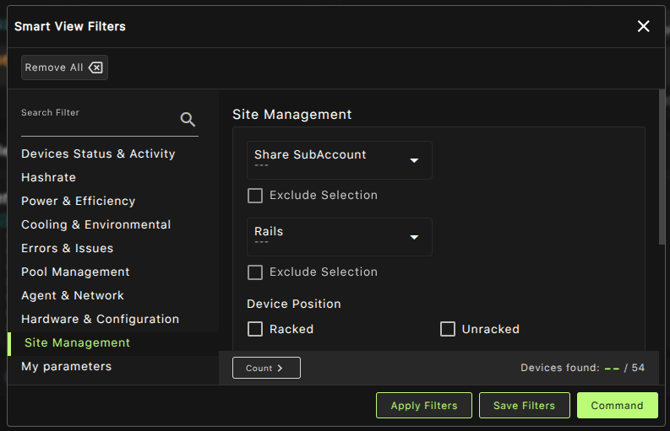
Shared Subaccount
- Show devices linked to specific shared subaccounts
→ Filters devices based on the subaccount they belong to. - Exclude selection
→ Hides devices linked to the selected subaccounts.
Rails
- Show devices assigned to specific rails
→ Filters devices by their configured rails. - Exclude selection
→ Hides devices on the selected rails.
Device Position
- Racked – Show devices that are installed in racks.
- Unracked – Show devices that are not installed in racks.
Racks
- Show devices in specific racks
→ Filters devices based on rack assignments. - Exclude selection
→ Hides devices in the selected racks.
Groups
- Show devices in specific groups
→ Filters devices assigned to certain user-defined groups. - Exclude selection
→ Hides devices in the selected groups.
PDUs
- Show devices connected to specific PDUs
→ Filters devices based on the Power Distribution Units they are connected to. - Exclude selection
→ Hides devices connected to the selected PDUs.
My Parameters:
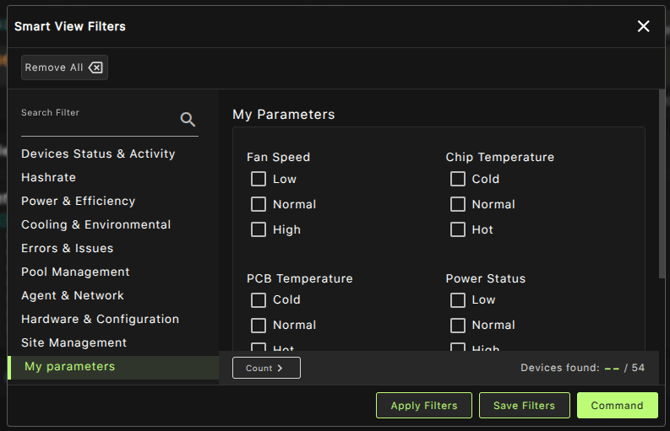
Fan Speed
- Low – Devices with fan speed below normal range.
- Normal – Devices with fan speed in the normal range.
- High – Devices with fan speed above normal range.
Chip Temperature
- Cold – Devices with chip temperature below normal range.
- Normal – Devices with chip temperature in the normal range.
- Hot – Devices with chip temperature above normal range.
PCB Temperature
- Cold – Devices with PCB temperature below normal range.
- Normal – Devices with PCB temperature in the normal range.
- Hot – Devices with PCB temperature above normal range.
Power Status
- Low – Devices consuming less power than expected.
- Normal – Devices consuming power within the normal range.
- High – Devices consuming more power than expected.
Efficiency Status
- Low – Devices performing below expected efficiency.
- Normal – Devices performing within expected efficiency.
- High – Devices performing above expected efficiency.
IoT Hashrate Status
- Low – Devices with IoT hashrate below expected range.
- Normal – Devices with IoT hashrate in the normal range.
- High – Devices with IoT hashrate above expected range.