
Overview
After downloading the Agent from the platform, Linux users can manually install and launch the application from their terminal. Follow the steps below to ensure the Agent is installed in a secure and persistent directory.
Creating Agent
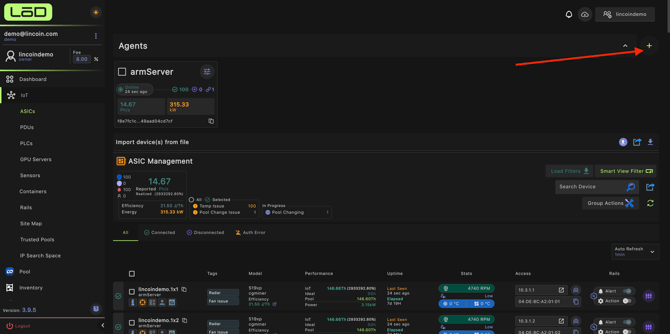
- To create a new agent click on "IoT" then click "ASICs" at the top you will see an agent. section.
- Click the plus icon on the right hand side and name your new agent.
Downloading the App
- Click the same plus icon on the right hand side but this time select "Download App."
- Choose what version of Linux you are running and wait for the file to download.
Installation Location
It is highly recommended to install the Agent in a directory under your user or home folder.
Avoid installing in:
- /tmp
- /Downloads
- /Desktop
These locations are temporary or prone to deletion and may cause stability issues.
Installation Steps
- Open the Terminal
Navigate to the folder where you extracted the Agent files.
Run the following commands:
sudo apt update
- Ensures your system packages are up to date.
sudo chmod +x LincoinAgent
- Grants execution permission to the Agent file.
sudo ./LincoinAgent
- Launches the Lincoin Agent installer.
Accessing the Agent Interface
Once the Agent is running, Linux users must manually open the interface.
In your browser, navigate to:
This will open the Agent dashboard, where you can add your Agent key from the platform to complete the setup.
Adding Your Agent Key
After downloading and running the Lincoin Agent, you must place your Agent Key inside a key.txt file located in the same folder as the Agent executable.
Steps
1. Create the key file
Run the following command in your terminal inside the Agent directory:
touch key.txt
Use nano to open the file:
nano key.txt
Paste your complete Agent Key into the file exactly as provided.
4. Save and exit
-
- Press Ctrl + O, then press Enter to save.
- Press Ctrl + X to close the editor.
Restart the Agent (if needed)
sudo ./LincoinAgent
The Agent will automatically read the key.txt file and authenticate with the platform.